CaptureGem vs OBS Studio: which to use for recording cam shows
Updated
The short answer
- Use CaptureGem to record cam shows. It keeps the original broadcast at the highest quality available, handles several rooms side by side and, on Premium, begins recording on its own as soon as a model is online.
- Use OBS Studio for everything you make yourself: live streaming, tutorials, gameplay, webcam and microphone recordings, scenes and overlays.
- Plenty of people keep both installed. They are built for different jobs.
CaptureGem and OBS Studio at a glance
Scroll the table sideways to see both columns.
| Feature | CaptureGem | OBS Studio |
|---|---|---|
| What it records | The cam site's source stream, directly | Whatever is on screen: a window, a display or a browser source |
| Price | Free version; Premium for unlimited, automatic recording | Free and open source (GPL-2.0) |
| Operating systems | Windows, macOS and Linux | Windows, macOS and Linux |
| Starting a recording | Automatic when a model goes live (Premium), or by hand | You press Start Recording; automation needs plugins or scripts |
| Several rooms at once | Up to 10 models on Free; unlimited on Premium, as bandwidth allows | One composited recording by default |
| Video quality | The site's top available stream, saved as delivered | Depends on the player size, the page and your encoder settings |
| Encoding while recording | No second encode on most sites | Every frame is encoded again by your CPU or GPU |
| File formats | MP4 by default, MKV optional | MKV, MP4, hybrid MP4, MOV and more |
| After recording | Review tab with image grids, tags, favorites, editor and Combine Videos | Files in a folder; organize and edit elsewhere |
| Streaming, scenes, overlays | Not what it is for | Yes, its core strength |
Two different kinds of recorder
OBS Studio is a production studio. You build scenes out of sources (a display or window capture, a browser source, a camera, a microphone), balance the audio in its mixer, add filters, transitions and overlays, then record or stream the result. It is free, open source and available for Windows, macOS and Linux from obsproject.com, and its plugin ecosystem is enormous.
CaptureGem is a stream recorder. It never looks at your screen. You tell it which models to follow on which sites, and it writes the video those sites broadcast, at the top quality on offer, directly to disk.
You can point OBS at a cam site, and many people start that way. The catch is that you are filming a web page, and that shapes everything about the result.
What changes when you record the screen
- You have to be there. OBS records when you press Start Recording and stops when you press Stop. It has no idea when a model comes online, so you either keep watch or build your own automation from plugins and scripts.
- The page ends up in the picture. Chat, tip menus, pop-ups and buffering spinners land in the video unless you crop them, and the resolution is capped by how big the player is on your screen.
- Everything is encoded twice. The site has already compressed the stream. OBS takes what is shown and compresses it again on your CPU or GPU, which costs processing power and some detail.
- One show at a time. The default is a single composited recording. Capturing three rooms means three windows arranged in one scene, or separate setups that you maintain.
- The browser has to stay open, and usually visible, for the whole show.
How CaptureGem handles the same show
CaptureGem records the stream rather than your screen, so chat, overlays and the size of your browser window never reach the file. On most sites there is no render-and-re-encode step: you keep the quality the site delivered, and your graphics card isn't busy compressing video. XCams, ManyVids and Superlive are the exceptions; CaptureGem captures those through its built-in browser and converts them afterwards.
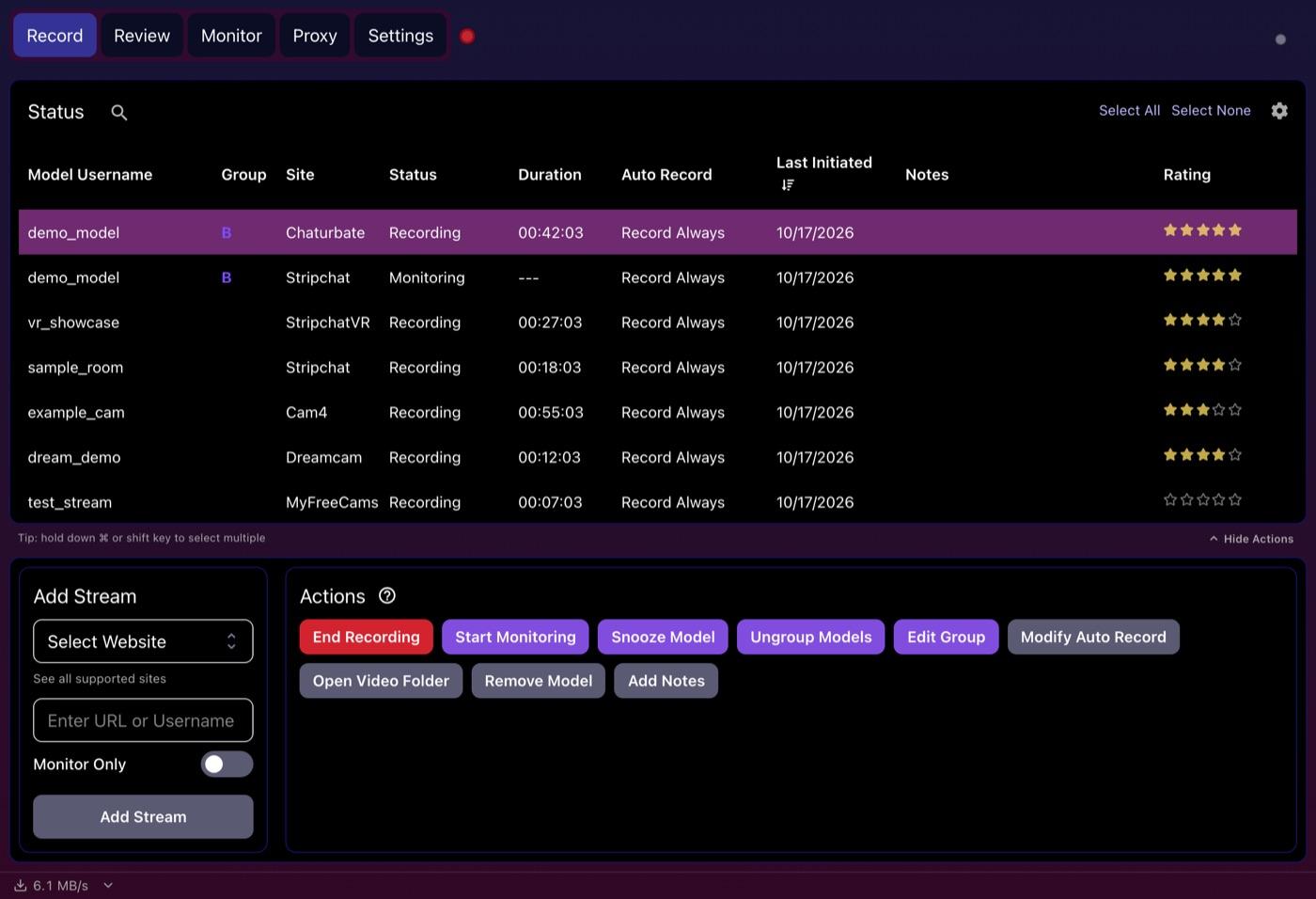
It also records many rooms at the same time. The free version handles up to 10 models, with each recording capped at five minutes, which is plenty for a trial. Premium removes the cap, and the number of simultaneous recordings is limited only by your bandwidth.
Recordings that start themselves
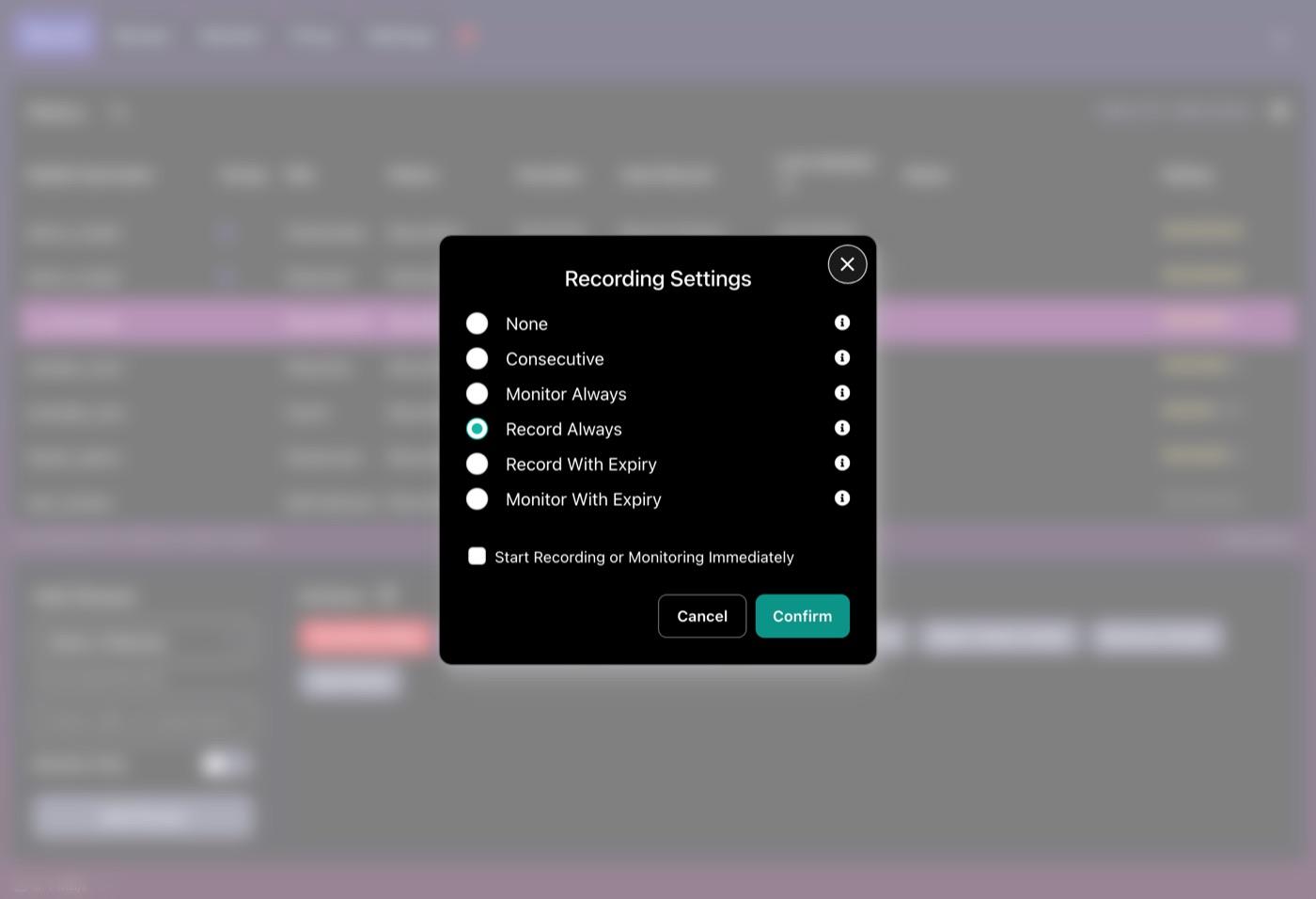
With Premium, auto-record watches each model and starts the moment they go live. It picks up again after a dropped connection or network timeout, and by default each long show is cut into 60-minute files. The modes are Record Always, Monitor Always, Consecutive, Record With Expiry and Monitor With Expiry, plus None for models you handle by hand.
Watching without a second download
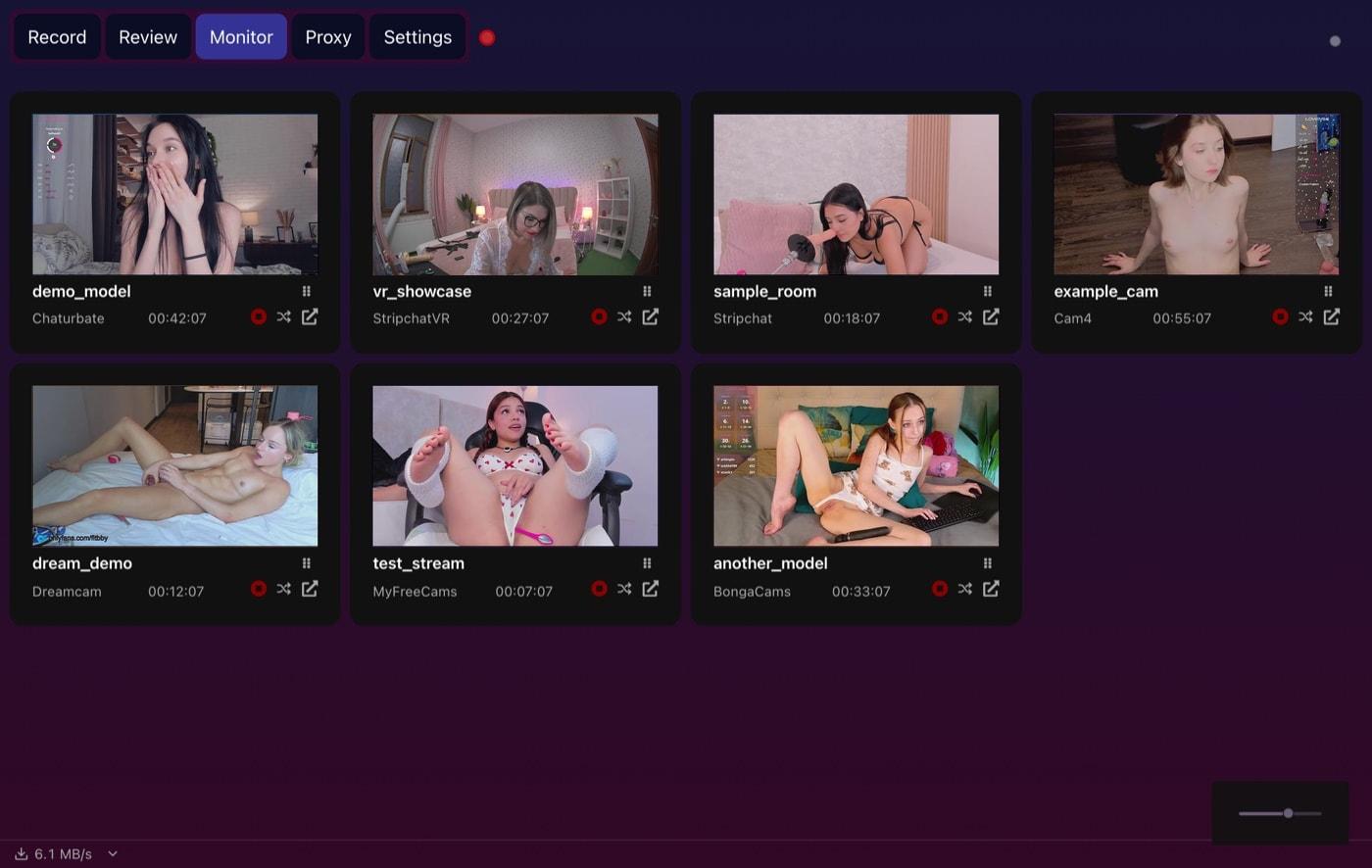
You don't need the sites open in a browser at all. The Monitor tab gives each running recording its own live preview, labelled with the site and elapsed time, and builds it from the stream CaptureGem is already saving, so checking in costs no extra bandwidth.
After the recording
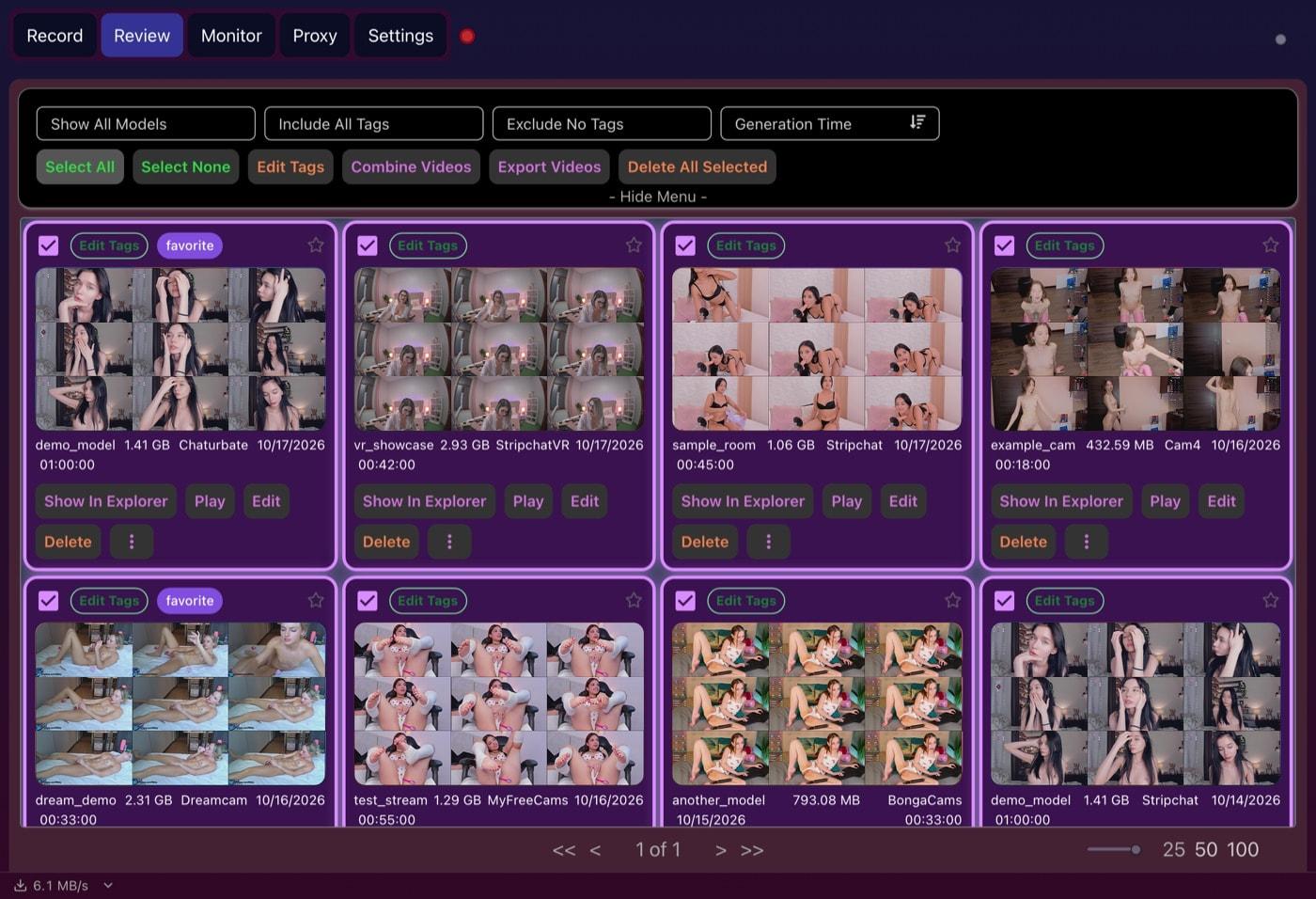
OBS leaves you with a file in a folder; sorting and trimming happen in other software. CaptureGem keeps going. Its Review tab generates an image grid for every recording; from there you can narrow things down by model or tag, star favorites, protect files from deletion, play them, trim them in the built-in editor, or select several to combine, export or delete in one step.
Jobs OBS does better
OBS is the better choice for anything you create rather than capture: streaming to your own channel, recording gameplay or tutorials, mixing a microphone and webcam, building scenes with overlays and transitions, or grabbing something from a site no recorder supports. It is free with no limits, and very few tools match its flexibility.
CaptureGem doesn't try to do any of that. It is built for one job: saving cam shows unattended, at source quality, with a library waiting afterwards.
Which should you use?
- You record cam shows regularly: CaptureGem. Source-quality files, several rooms at once and, with Premium, recordings that begin without you.
- You produce your own content: OBS Studio, every time.
- You need a one-off capture of a supported cam site: CaptureGem's free version saves the stream itself, without the page around it.
Moving cam recording from OBS to CaptureGem
- Download CaptureGem for Windows, macOS or Linux. There is no signup.
- Copy the room link or username of each model you have been capturing with OBS.
- On the Record tab, choose the site in Select Website, paste the link, leave Monitor Only off so the stream is saved, and click Add Stream. Our recording guides cover each of the 25 sites.
- With Premium, open Modify Auto Record, choose Record Always, and close the browser tabs you used to keep open for OBS.
- Keep your OBS scenes and profiles for streaming and other projects; nothing there needs to change.
- After the first show, open the Review tab to check the file and its preview grid.
The verdict
OBS Studio is excellent software, and if you make videos or streams you should keep it. For recording cam shows, though, screen capture is the long way round. CaptureGem saves the stream itself, at the quality the site sends, for as many rooms as your connection can carry, and keeps everything organized afterwards. Try the free version on a few rooms, then move to Premium for automatic, unlimited recording.
Only record streams you are entitled to keep, and treat performers, each site's rules and your local laws with respect.